Menu
For families, schools, businesses and institutions

Take control of device distractions. Make room for what matters.

Homework. Classroom learning. A productive workday. GuardSphere helps families, schools and organizations set clear app and website rules, plan device schedules, and understand device use—all from one place.

14-day free trial · No credit card required. Windows, Android and ChromeOS downloads are available. Choose the deployment path for your device.

No credit card required. Start with one supported device and see how your rules work.

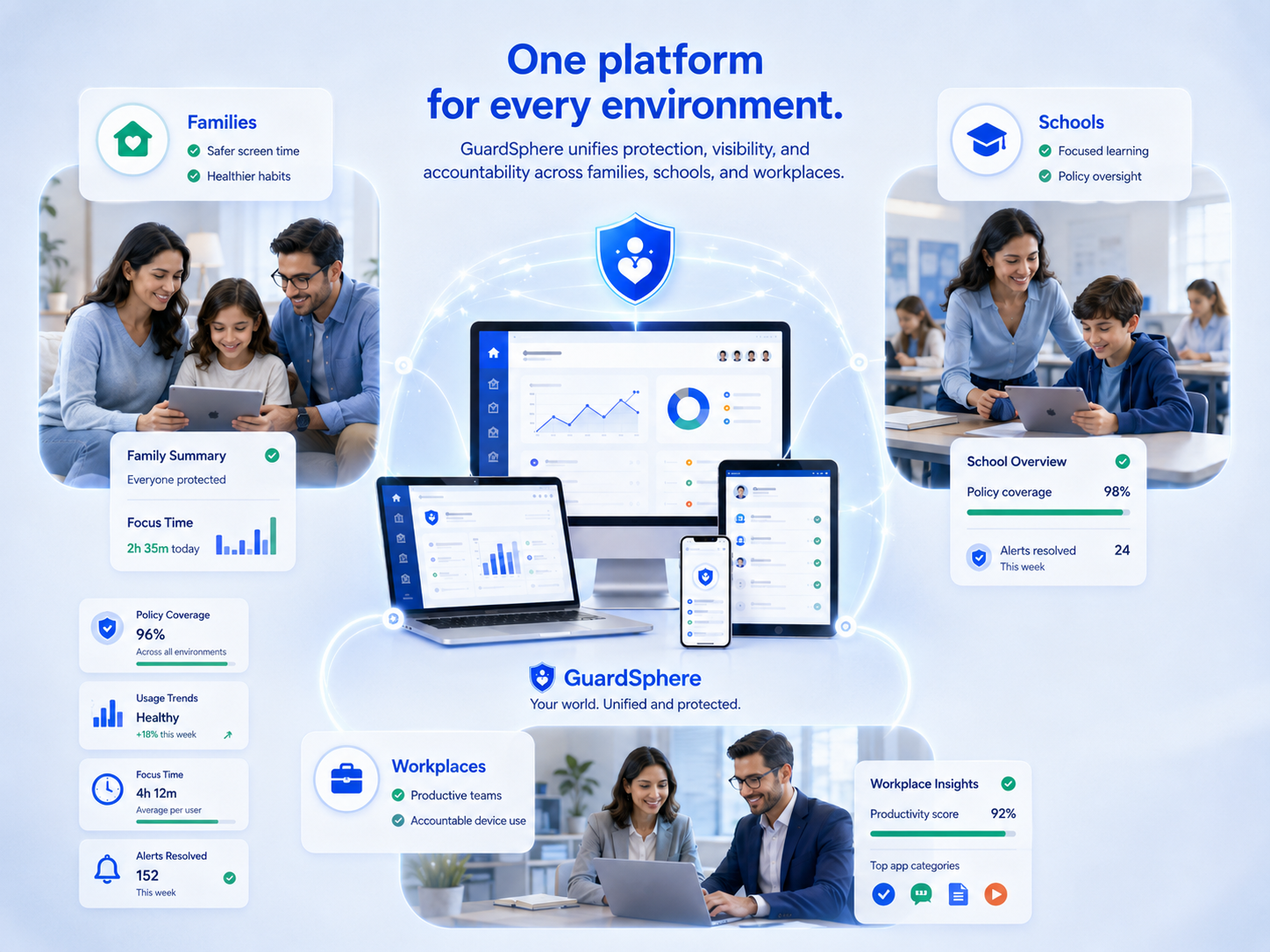
GuardSphere protects families, schools, and workplaces from digital risks while providing oversight and peace of mind.
Easy setup
Enroll with a QR code, link or short code
Clear rules
App, website and schedule rules
Up to 500
Devices per organization allowance
Decision history
Review allowed and blocked events

AI-assisted category rules

Block a category. Skip the one-by-one list.

Choose Gaming or another category for apps and websites. GuardSphere uses category classification, including AI-assisted classification, to apply your rules to matching activity.

Once a newly encountered app or site is classified as Gaming, the same category rule can apply without adding its name to your blocklist.

How category classification works →

Policy example · no live classification

  1. 1
    Choose Gaming → BlockSet the time window for your category rule.
  2. 2
    A new game app or site is classifiedIts effective category matches Gaming.
  3. 3
    Matching activity is blockedThe active rule applies on the supported device.

New or unclassified activity follows your policy settings while classification is pending. Enforcement depends on the schedule, exceptions, device setup and supported controls.

For devices you own or are authorized to manage. Not for covert monitoring or managing someone else’s device without permission.

Interactive setup walkthrough

SIMULATION · SAMPLE DATA

Try a device rule before you start your trial.

Practise enrollment, adjust a rule and explore sample decisions. This simplified walkthrough stays in your browser: it does not install software, connect a device or save a real policy.

  1. Choose
  2. Enroll
  3. Set a rule
  4. Review

Who are you setting up for?

Make a plan for homework and device use.

Illustrative sample Windows device
Illustrative sample device · Windows

Questions before you start?

Do I need a credit card, or will this charge me?

The 14-day trial starts without a credit card. Choose a paid subscription separately when you are ready. This walkthrough has no payment form and cannot create a subscription.

What should I have ready?

An email address you can verify, one supported Windows, Android or ChromeOS device, and permission to manage it. Installation or school deployment may require an administrator. Check the platform guide before beginning.

I already have an account. Should I register again?

Use your existing GuardSphere account and workspace. Sign in here. To add a different sign-in method, use Account sign-in methods while signed in; do not create another organization just to test a provider.

Does clicking this demo change my device?

No. The buttons change sample data in this browser only. A real trial requires installing the supported agent or extension, completing enrollment and checking its permissions. Android fully managed DPC provisioning is a separate setup path, not something this demo performs.

What if something does not work, or I need to undo a rule?

Start with one pilot device and keep essential access available. Use the platform deployment guide to check setup, policy sync and the authorized recovery or removal path. Get setup help before expanding to more devices. Restart walkthrough resets only this sample.

One plan price for your device allowance

Family Core Control starts at CAD $10/month for 5 devices. Organization Core Control starts at CAD $20/month for 5 devices. Both are totals for the allowance, not a price multiplied by users.

See complete plan prices and allowances →

Core Control

From CAD $10/mo

Enroll devices, assign groups, and set app, website and schedule rules.

Verified Governance

Add-on

Check which devices have policy gaps and review allowed or blocked decisions.

Workforce Intelligence

Add-on

Review app and website usage during work or study windows, with attribution where enabled.

How GuardSphere works

Get company devices ready, keep rules clear, and plan offboarding.

GuardSphere is designed to make responsible device governance practical for the people setting and reviewing device rules.

01

Enroll devices

Bring devices into GuardSphere using QR, link, short code, or managed setup.

02

Assign policies

Set app, website and schedule rules for each team or class.

03

Review and offboard

Review policy decisions and test the authorized removal path before reassigning a device.

Already use Intune or Google Workspace?

Start with what your existing license already covers. GuardSphere is worth a pilot when you need a separate place to set app and website rules, review policy decisions and understand usage. It is not a replacement for every MDM function.

Flat device allowances, not a charge for every user

Choose one plan and device allowance. Compare the total with your existing bundle before adding another tool.

Test the way out as well as the way in

Windows includes an administrator-authorized uninstall workflow. Android and ChromeOS removal depends on the enrollment model and managing administrator. Verify offboarding on your pilot device before rollout.

Compare GuardSphere with Intune and Workspace →
Device applications

Download GuardSphere Device Agent on your devices.

Install the appropriate GuardSphere application for each platform. Schools normally deploy the ChromeOS Extension centrally through Google Workspace, while Android and Windows Device Agents follow their respective installation and enrollment paths.

School Chromebook deployment

Use Google Workspace Force Install to deploy the ChromeOS Extension. An authorized administrator or delegated IT staff member should then open the installed extension and complete GuardSphere enrollment on every managed Chromebook before it is issued to a student.

✓ChromeOS Extension available now
✓Android Device Agent available on Google Play
✓Windows Device Agent available on Microsoft Store
✓One Deployment Guide for all supported scenarios

Open Deployment Guide
Choose a platform

Scan the QR code or open the download link.

Choose your device platform below to get GuardSphere and review the recommended deployment steps. ChromeOS, Windows and Android downloads are available. Install the appropriate agent, then complete enrollment and verify the required permissions.

ChromeOS

ChromeOS Extension

Available now

Recommended for managed Chromebook environments

Deploy the GuardSphere ChromeOS Extension centrally through Google Workspace using Force Install.

Deployment note

After installation, an authorized administrator or delegated IT staff member should open the extension and complete enrollment on each managed Chromebook before it is issued to a student.

QR code for the GuardSphere ChromeOS Extension
guardsphere.app/download/chromeos
Android

Android Device Agent

Available now on Google Play

For Android phones and tablets

GuardSphere supports DPC deployment for fully managed devices and normal Device Agent deployment for lighter-control environments.

Deployment note

Review device ownership, authorization, permissions, enrollment, and the appropriate Android management model before rollout.

QR code for the GuardSphere Android Device Agent
guardsphere.app/download/android
Windows

Windows Device Agent

Available now

For Windows computers

Install the GuardSphere Windows Device Agent from Microsoft Store, then complete enrollment and verify background service operation, policy synchronization, and protected removal.

Deployment note

Complete a controlled pilot and verify enrollment, service health, policy synchronization, reporting, and the administrator-authorized uninstall path before wider rollout.

QR code for the GuardSphere Windows Device Agent
guardsphere.app/download/windows
Planning a deployment?

Choose the correct installation and enrollment path before rollout.

Review ChromeOS-only, Android-only, Windows-only, or mixed deployment guidance. The public guide explains platform choices, supported enrollment methods, pilot verification, production rollout, and common deployment questions.

Choose your use

Start with the devices and people you manage.

Compare pricing

Give homework and bedtime a clearer plan.

Set boundaries for distracting apps and websites, create device schedules, and review usage together. Make screen-time expectations clear before the next disagreement.

Start your 14-day free trialExplore families →
Trust and accountability

Know which rules apply and who can change them.

Assign administrator roles, review policy decisions and check coverage before making changes. Test the controls on a supported pilot device before you roll them out.

✓Role-based administration for safer delegation
✓Audit-ready logs that explain policy decisions
✓Review queues for domains and applications
✓Trial, demo-code, and subscription access control
✓Device-tier enforcement to prevent unsafe downgrades
✓Separate paths for families, schools, enterprises, and institutions

Check the published applications

Review each store listing and the deployment guide before installing. Availability is not an endorsement or a customer rating.

Ready to enroll your first device?

Start with Core Control. Add Verified Governance and Workforce Intelligence when you need deeper compliance visibility and usage reports.

14-day trial. No credit card required. Payments begin only when you choose a paid subscription through Stripe Checkout.

Built by Jude Okoye at GuardSphere Technologies Inc. Meet the founder or book a product demo.